Google Authentication
Learn how to configure Google sign-in for your VibeFast stack.
Google Cloud Setup
-
Create a New Project
- Visit the Google Cloud Console and create a new project.
-
Configure the OAuth Consent Screen
- Go to APIs & Services → OAuth consent screen
- Fill in required fields: app name, support email, logo (optional), authorised domains
- Set user type to External for most apps

- Create OAuth 2.0 Client IDs
- Navigate to APIs & Services → Credentials and click Create Credentials → OAuth client ID

-
Enter the name of the application and keep the application type Web Application (this works for all web, Android, and iOS—no need for separate clients).
-
If you want to enable it for the web app, add
http://localhost:3000(for development) andhttps://<your-domain>.com(for production) to the Authorized JavaScript origins. NOTE:.comis not required; it can be any domain, for examplehttps://www.vibefast.pro. -
In Authorized redirect URIs, if you are using Convex, add your Convex site URL appended with
/auth/google/callback(e.g.,https://<your-deployment-name>.convex.site/api/auth/callback/google). If you're using Supabase then addhttps://<your-deployment-name>.supabase.co/auth/v1/callback.


- Copy the Client ID and Client Secret
Set Environment Variables
Add your Convex URL to Authorized redirect URIs. Find it in Convex Dashboard → Settings → URL & Deploy Key.
npx convex env set AUTH_GOOGLE_ID YOUR_AUTH_GOOGLE_ID_HERE
npx convex env set AUTH_GOOGLE_SECRET YOUR_AUTH_GOOGLE_SECRET_HERE
Notes:
- Official Convex Google OAuth docs: https://labs.convex.dev/auth/config/oauth/google
Configure in Supabase Dashboard
- In your Supabase Dashboard go to Authentication > Sign In/Providers > Google
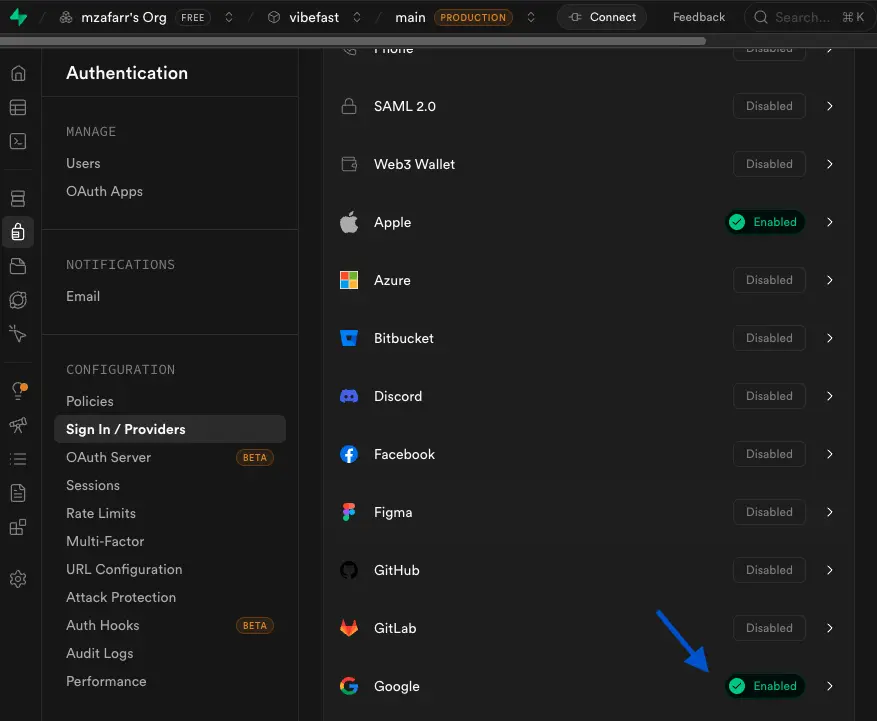
- Enable Sign in with Google and add your Client ID and Client Secret
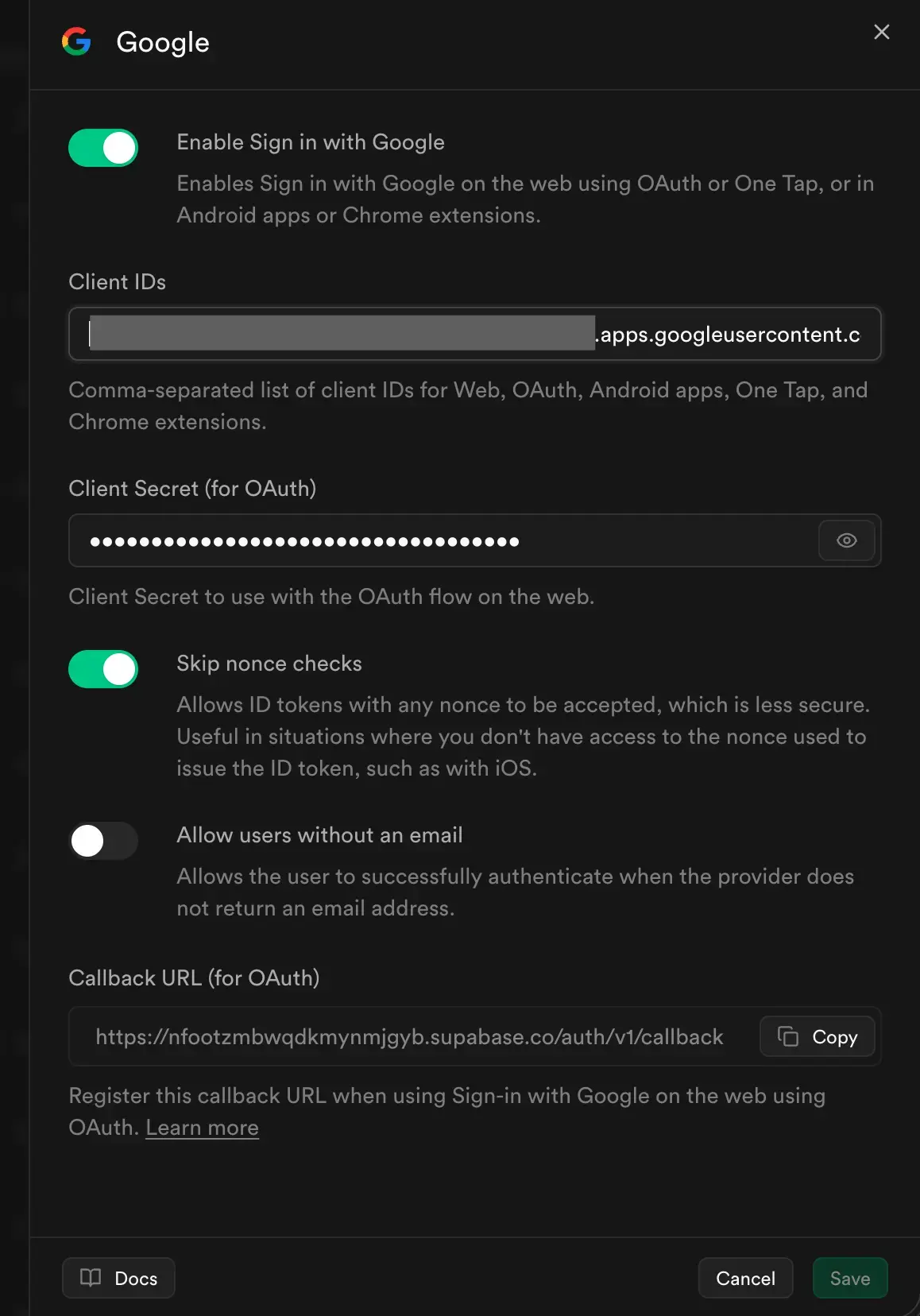
- Copy the Callback URL shown in Supabase and add it to your Google Cloud Authorized redirect URIs
For native apps, follow Supabase's Google social auth guide for React Native:
import { GoogleSignin } from "@react-native-google-signin/google-signin";

const { idToken } = await GoogleSignin.signIn();
const { data, error } = await supabase.auth.signInWithIdToken({
  provider: "google",
  token: idToken,
});
Test Your Setup
Run your app and verify that Google sign-in launches the correct OAuth flow and returns a valid user session.
Found an issue or bug in the docs?
Help me improve! If you spot any errors, typos, or have suggestions, please let me know.
Reach out on X/Twitter @zafarbuildzz